
Creating Calls to Action for Real Estate
Picture this. You’ve finally got homebuyers’ attention with an amazing Facebook post. They click the link to your Facebook business page. They’re instantly impressed with the beautiful cover image and your professionalism, and yet nothing else happens. Your potential lead has gotten away because you didn’t create a proper call-to-action.
What is a Call-to-Action?
Pro marketers use a call-to-action (CTA) to tell their audience exactly what action they want them to take. It may seem like common sense that you should tell people what you want them to do, but many agents leave this key ingredient out of their marketing messages.
Ideally, a call-to-action will be:
- short
- direct
- clear
- time-bound (i.e.- give a time frame to take the action such as “today” or “now”)
The call-to-action will often appear as a button in digital media. In fact, Facebook includes a call-to-action button on each business page, and it’s a great way to push visitors to use to your lead generation products like IDX Home Search and Home Value Leads Tool.
How Set Up a Facebook Call to Action Button
Setting up your call-to-action button in Facebook is usually straightforward, but it has changed a bit as Facebook has introduced its new page experience in 2022. If you’re setting up a new page, you will set up a call-to-action during the initial setup steps.
If you already have a Facebook business page, here is how to set up your call-to-action button:
- Log in to your Facebook account.
- In the corner of your screen, you should see your Profile Picture. Tap it.
- In the menu that appears, you should see the profile you’re currently logged into. Below or beside it you should have the option to see all of your profiles/pages or it may have a down arrow icon if you’re on a mobile device.
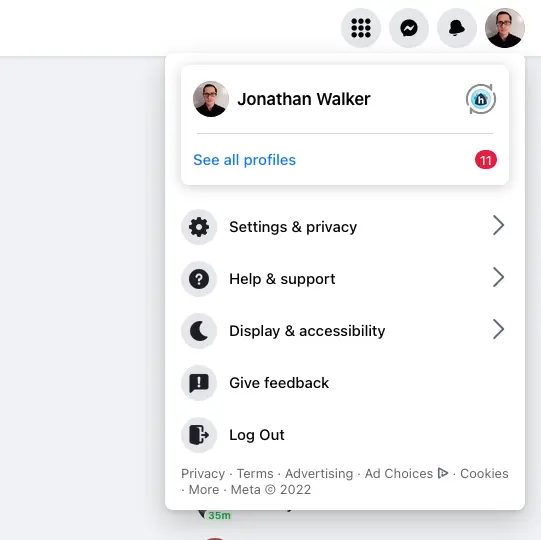
- Next, tap your page name to switch to your page’s profile.
- In space you normally use to create a post, you’ll see your profile picture. Tap your profile picture to be taken to your business page.
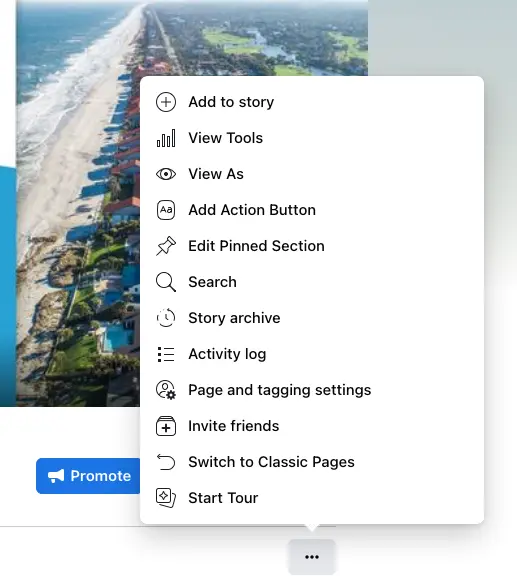
- On the right side below your cover image, you should see a gray button with 3 dots. Tap it.
- A menu should appear. Choose “Add Action Button.”
- You’ll be given several options for what your button says. Choose the action that fits your needs. For this example, we will choose the “Learn More” action.
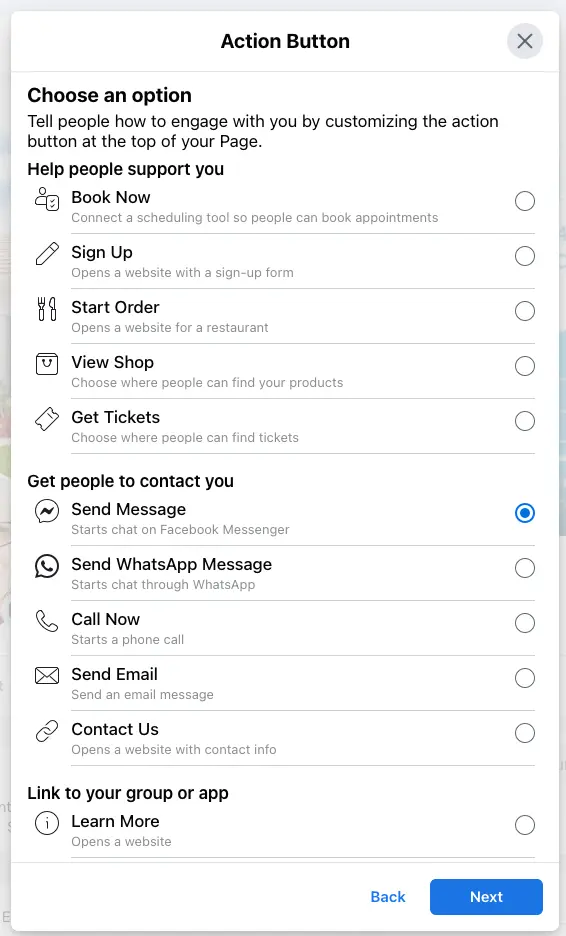
- After clicking “Next,” you’ll be asked to enter a website to send people. This is where you can enter the URL of a tool such as your IDX Home Search or Home Value Leads Tool.
- Click “Save” to finish.
Testing Your Call-to-Action Button
After saving the Call-to-Action button on your Facebook page, you will not be able to see the new button immediately. You will need to switch profiles to see your page as a visitor would. Use steps 1-4 above to switch to another profile.
Once you have signed into a different profile, return to your business page. Your call-to-action button should now be visible. It’s important to test your button to make sure it acts as expected. After all, you don’t want to lose a lead because your button doesn’t work correctly.
Now when visitors land on your Facebook business page you’ll be prepared to convert them into leads.

House Flipping: Tips from the Experts
House flipping is a real estate investment strategy that has caught the attention of entrepreneurs and real estate...

Virtual Home Tours on Social Media: Tips for Success
Property agents know that the key to a successful sale is often hosting an open house. Traditionally, open houses have...

5 Ways To Leverage Property Data In Real Estate Marketing
Not so long ago, the bulk of decisions made within the real estate industry relied heavily on anecdotal information...

The Top 3 Seller Lead Generation Strategies in 2022
Seller leads are at the top of every agent's mind nowadays. Here are the top strategies we are seeing for getting new...

Secrets to Making a Home More Sellable
Helping a client sell their home and worried about getting its value? If you want to maximize the value of their home,...

How to Build Trust Online as a Real Estate Agent
Real estate agents can find it challenging to keep pace with online marketing in an ever-changing market. Social media...